Tutorial 4: Two-Dimensional Conversion Functions
pygid supports several representations of 2D conversion: GID, Cartesian, polar, and pseudopolar.
Table 1. Conversion functions with description
Function |
Description |
Name of Output Image |
Corresponding Matrix Coordinates |
|---|---|---|---|
|
GID coordinates |
|
|
|
Polar coordinates for GID experiments |
|
|
|
Pseudopolar coordinates for GID experiments |
|
|
|
Cartesian coordinates for transmission experiments |
|
|
|
Polar coordinates for transmission experiments |
|
|
|
Pseudopolar coordinates for transmission experiments |
|
|
Note: In this tutorial, only GID and polar conversions are described.
All other conversion functions (det2pseudopol_gid(), det2q(), det2pol(), det2pseudopol()) use the same parameters and workflow.
Load datasets from Zenodo, and create params, matrix, and analysis instances as described in Tutorials 1–3.
from shapely.speedups import available

from pygid.datasets import get_dataset

# Download example dataset from Zenodo
try:
    files = get_dataset("tutorial_04")
    poni_path = files["poni"]
    mask_path = files["mask"]
    # several files for batch processing
    data_path = files["data"]
except:
    print("Dataset download skipped on Read the Docs.")
---------------------------------------------------------------------------
ModuleNotFoundError                       Traceback (most recent call last)
Cell In[1], line 1
----> 1 from shapely.speedups import available
      2
      3 from pygid.datasets import get_dataset
      4

ModuleNotFoundError: No module named 'shapely'
import pygid

# create pygid.ExpParams based on the PONI file
params = pygid.ExpParams(
    poni_path=poni_path,          # path to the PONI file
    mask_path=mask_path,
    ai=0.01,                       # angle of incidence (degrees)
    fliplr=True,
    flipud=True
)

# create pygid.CoordMaps based on pygid.ExpParams
matrix = pygid.CoordMaps(
    params  # pygid.ExpParams
)

# load the data from file
analysis = pygid.Conversion(
    matrix=matrix,                   # pygid.CoordMaps
    path=data_path,                  # path to the raw data file
    dataset='/entry_0000/ESRF-ID10/eiger4m/data'  # dataset path
)
print(f"raw data shape {analysis.img_raw.shape}")
raw data shape (13, 2162, 2068)
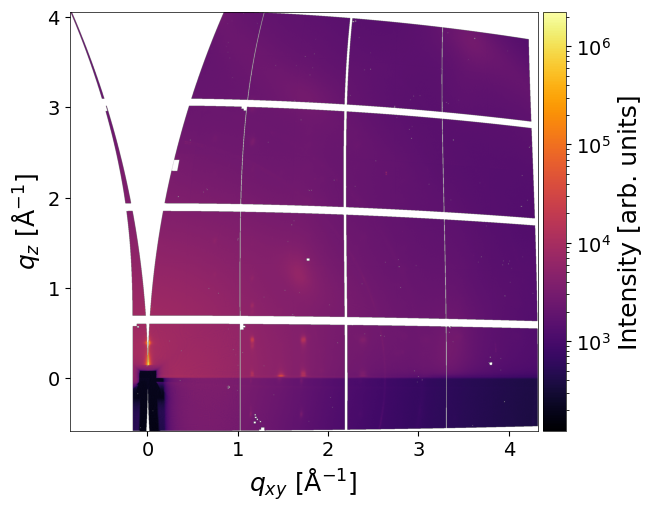
Minimal Code Example
analysis.det2q_gid(
    frame_num=7,                   # frames to convert; None = all images
    plot_result=True
)
Parameters (for all remapping functions)
Main parameters:
frame_num– index or list of indiced of loaded frames to convert (not the frame number in file). IfNone, all loaded images are converted.return_result– ifTrue, returns converted image and axes arrays. Default isFalse.interp_type– interpolation method for remapping ("INTER_LINEAR","INTER_NEAREST", etc.). Default:"INTER_LINEAR".multiprocessing– flag to enable multiprocessing. IfNone, uses the default defined in theConversionclass.q_xy_range- q_xy range (tuple, in Å⁻¹) for det2q_gid() functionq_z_range- q_z range (tuple, in Å⁻¹) for det2q_gid() functionradial_range- radial range range (tuple, in Å⁻¹) for det2pol_gid() functionangular_range- angular range range (tuple, in degrees) for det2pol_gid() function
Saving parameters:
save_result– whether to save the result as an HDF5 file in NXsas format.path_to_save– output path for the HDF5 result file.h5_group– name of the NXentry dataset within the HDF5 file.overwrite_file– ifTrue, overwrites existing HDF5 file. Default isTrue.overwrite_group– ifTrue, overwrites existing NXentry group. Default isTrue.exp_metadata–ExpMetadatainstance containing experimental information (see Tutorial 6).smpl_metadata–SampleMetadatainstance containing sample information (see Tutorial 6).
Plotting parameters:
return_fig- whether to returnfig,axplot_result– whether to plot the remapped image.clims– tuple(vmin, vmax)defining color scale limits.xlim,ylim– tuples defining X and Y axis limits for the plot.save_fig– whether to save the plotted image to a file.path_to_save_fig– path to save the plot (e.g..png,.tiff).
Reciprocal Space Conversion (GID Geometry)
q_xy, q_z, img = analysis.det2q_gid(
    frame_num=[5,6,7],                   # frames to convert; None = all images
    plot_result=True,
    return_result=True,
    clims=(4e2,1e5),
    q_xy_range = (0,3.5),
    q_z_range = (0,3.5),
)

print(f"x-axis shape {q_xy.shape}")
print(f"y-axis shape {q_z.shape}")
print(f"length of images and their shape {len(img), img[0].shape}")
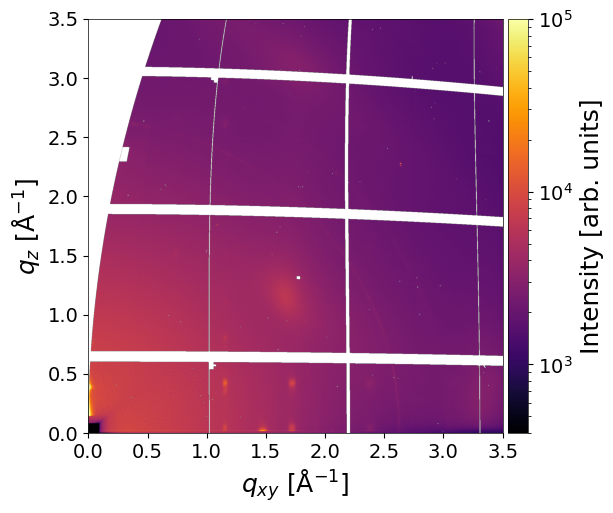
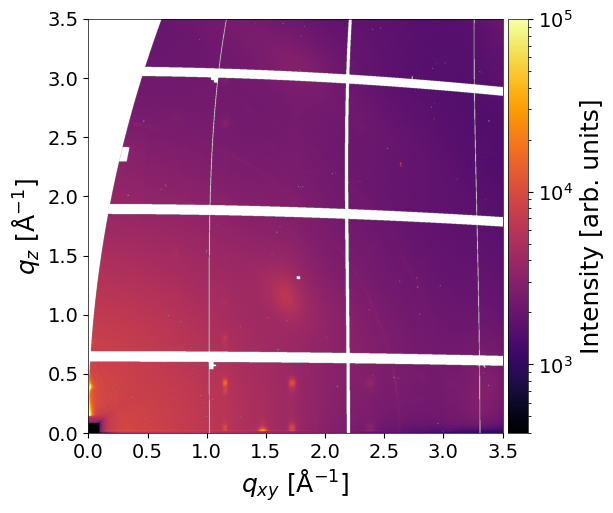
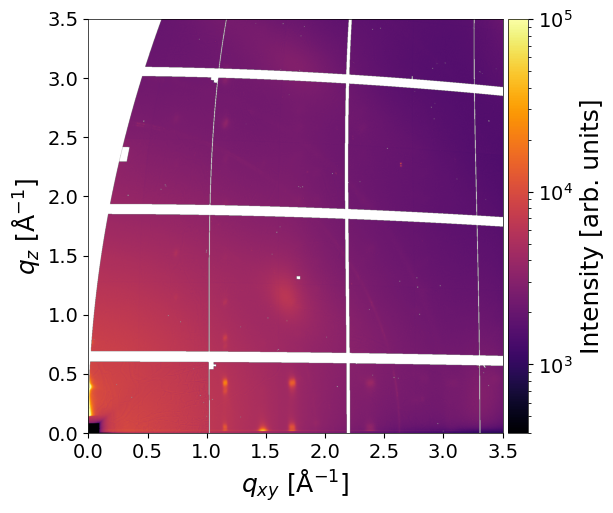
x-axis shape (1506,)
y-axis shape (1506,)
length of images and their shape (3, (1506, 1506))
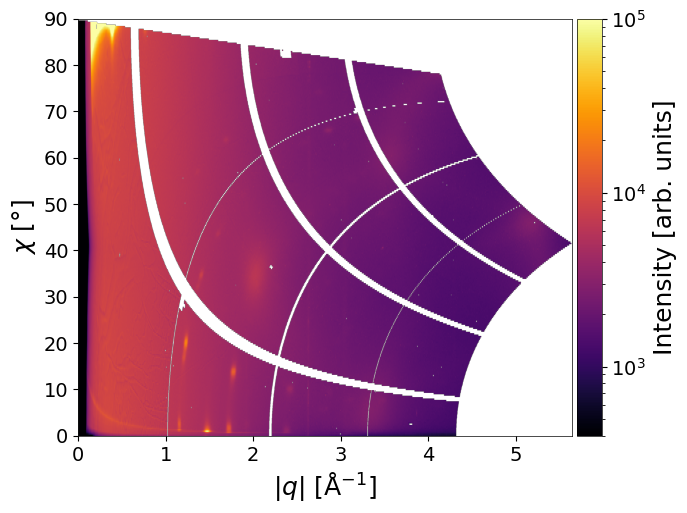
Polar Conversion (GID Geometry)
q_xy, q_z, img = analysis.det2pol_gid(
    frame_num=7,                   # frames to convert; None = all images
    plot_result=True,
    return_result=True,
    clims=(4e2,1e5),
    angular_range = (0,90)  #
)
Accessing Converted Data
The results of a conversion can be retrieved using the pygid.Conversion.get_result() method after the conversion has been performed. The converted data are available only in memory and can be accessed before they are saved to disk.
analysis.det2pol_gid(
    plot_result=False,
)

x, y, img = analysis.get_result(
    frame_num=None,                        # frames to convert (int or list); None = all images
)

x.shape, y.shape, len(img), img[0].shape
((2428,), (1200,), 13, (1200, 2428))
Plotting After Conversion
The results of the conversion can be visualized immediately after processing by calling plot_result. The method optionally returns the numerical data arrays and supports plotting of selected frames.
x, y, img = analysis.plot_result(
    return_result=True,                 # return data arrays
    frame_num=0,                        # frames to plot (int or list); None = all images
    plot_result=True,                   # plot result
    clims=(4e2,1e5),                    # intensity limits
    save_fig=True,                      # save plot flag
    path_to_save_fig="graph.tiff",      # save plot path
)
How to change the plotting defaults (colormap, font size, etc.) is described in Tutorial 12.
Saving of the Result
Converted data can be saved as an NXsas file (NeXus / HDF5) with a dedicated internal structure.
The output file can store:
multiple images in a single entry, or
images in different entries within the same file.
To save results from multiple pygid.Conversion instances into one file, set
overwrite_file = False.
In this case, all images must have the same shape (same q-range and resolution).
If the shape differs, a new entry is created automatically.
The saved file also contains:
PONI file information
full details of the conversion parameters
For viewing and inspecting the resulting NeXus files, silx view is recommended.
Experimental and sample metadata can also be stored in the file; this is described in Tutorial 6.
q_xy, q_z, img = analysis.det2q_gid(
    frame_num=None,
    plot_result=False,
    return_result=True,
    clims=(4e2,1e5),
    q_xy_range=(0,3.5),
    q_z_range=(0,3.5),
    save_result=True,
    path_to_save='result.h5'
)

print(f"x-axis shape {q_xy.shape}")
print(f"y-axis shape {q_z.shape}")
print(f"length of images and their shape {len(img), img[0].shape}")
13 converted images have been saved in ‘result.h5’ as a single dataset
Modifying and Saving Data After Conversion
Converted data can be modified in memory after the conversion step and before saving. This allows for post-processing adjustments prior to writing the final HDF5 output.
# Run conversion without saving
analysis.det2q_gid(save_result=False)

# Modify converted image data
# (must remain a list of 2D NumPy arrays)
analysis.img_gid_q[0] /= 2

# Save results to HDF5
pygid.DataSaver(
    analysis,                    # pygid.Conversion instance
    path_to_save='result.h5',    # path to save
    overwrite_file=True,         # Whether to overwrite an existing HDF5 file
    overwrite_group = True,      # Whether to overwrite an existing HDF5 entry
    h5_group = 'entry_0000',          # The specific group in the HDF5 file
)
NOTE: a new conversion overwrites the result of previous conversion in memory